> ## Documentation Index
> Fetch the complete documentation index at: https://docs.atlanta.gg/llms.txt
> Use this file to discover all available pages before exploring further.
# Navigation
> A comprehensive guide to operating the software's in-game user interface. Learn how to open and close the menu, locate and adjust key settings, and use all the software features quickly and effectively while in the game.
***
## Loading
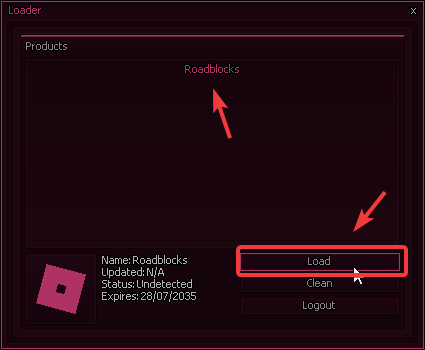
After successfully logging in to the loader (per the Getting Started guide), simply launch the game you wish to play. With the game running and selected in the loader, press the Load button to begin the software injection process.
 ***
## Setup
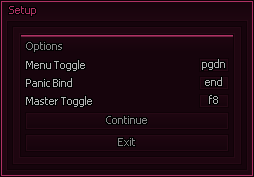
Upon the software successfully injecting, you will be presented with a one-time Setup Window. This only appears the very first time you launch the software for a specific game, allowing you to quickly configure critical settings before playing. Inside this window, you must define three essential keybinds:
* Menu Toggle Bind: Used to open and close the software menu while you are in the game.
* Panic Bind: Instantly unloads the entire software from the game as a safety measure.
* Master Toggle: Enables or disables all Player Visuals for quick toggling.
***
## Setup
Upon the software successfully injecting, you will be presented with a one-time Setup Window. This only appears the very first time you launch the software for a specific game, allowing you to quickly configure critical settings before playing. Inside this window, you must define three essential keybinds:
* Menu Toggle Bind: Used to open and close the software menu while you are in the game.
* Panic Bind: Instantly unloads the entire software from the game as a safety measure.
* Master Toggle: Enables or disables all Player Visuals for quick toggling.
 ***
## Configuration
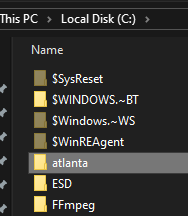
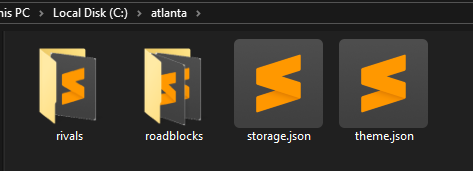
All configuration files generated by the software are saved locally within the main installation directory: C:\atlanta. This folder acts as the central storage hub for all your settings and accounts.
***
## Configuration
All configuration files generated by the software are saved locally within the main installation directory: C:\atlanta. This folder acts as the central storage hub for all your settings and accounts.
 ### Primary Folder Structure
The main C:\atlanta folder contains:
* Game Folders: A dedicated folder for each product (e.g., roadblocks, cs2), storing all product specific files.
* storage.json: This file securely stores your username and password for the software loader.
* theme.json: This file holds your global menu theme. Any theme changes you save here will also be applied to the appearance of the loader application.
### Primary Folder Structure
The main C:\atlanta folder contains:
* Game Folders: A dedicated folder for each product (e.g., roadblocks, cs2), storing all product specific files.
* storage.json: This file securely stores your username and password for the software loader.
* theme.json: This file holds your global menu theme. Any theme changes you save here will also be applied to the appearance of the loader application.
 ### Product Specific Files
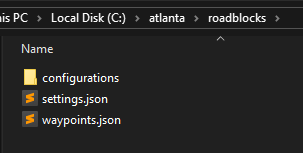
Inside each individual product folder (e.g., C:\atlanta\roadblocks), you will find:
* configurations Folder: This directory stores all your custom, saved configuration files created while operating the software in game.
* settings.json: This file stores the necessary configuration settings chosen in the initial setup window, such as your Menu Toggle Bind, Panic Bind, and other settings within the Config window.
### Product Specific Files
Inside each individual product folder (e.g., C:\atlanta\roadblocks), you will find:
* configurations Folder: This directory stores all your custom, saved configuration files created while operating the software in game.
* settings.json: This file stores the necessary configuration settings chosen in the initial setup window, such as your Menu Toggle Bind, Panic Bind, and other settings within the Config window.